
Accounting categories allow you to organize your business transactions into functional buckets, such as Transportation, Office Supplies, or Travel.
These categories can be assigned to financial records such as expenses or bills to simplify your bookkeeping processes.
To manage accounting categories via the Business API, you must use an access token with the following scopes:
| Operation | Required Scope |
|---|---|
| Retrieve accounting categories | READ |
| Create, update, or delete accounting categories | WRITE |
The WRITE operations are not supported for externally managed accounting categories.
Create an accounting category
This operation is not supported for externally managed accounting categories.
To add a new accounting category, you must provide the following details:
Required details
- Name: A unique name for the category that helps to understand its purpose.
- Code: A unique code for the category, used for bookkeeping. For example,
WFHor007.
You can also include additional settings for automation.
Optional details
- Default tax rate ID: The ID of the tax rate to be pre-populated for financial records when they are assigned to this category.
On success, the response returns only the ID of the created category. To get all the details, use that ID to retrieve a specific accounting category.
For more details and sample requests and responses:
See the API reference: Create an accounting category
Retrieve accounting categories
The Business API lets you retrieve the accounting categories available for your business.
When you retrieve the categories, for each category, you get its details, such as the category ID, name, and code, as well as when it was created and when it was last updated.
You can:
- Retrieve all the accounting categories available in your settings
- Retrieve a specific accounting category
Retrieve a list of accounting categories
When you list all the accounting categories created for your business, the results are paginated and sorted by the created_at date in reverse chronological order.
To get the next page of results, use the next_page_token value.
For more details and sample requests and responses:
See the API reference: Retrieve a list of accounting categories
Retrieve a specific accounting category
You can also retrieve a specific accounting category by its ID to look up its name, code, and dates of creation and last update.
For more details and sample requests and responses:
See the API reference: Retrieve an accounting category
Update an accounting category
This operation is not supported for externally managed accounting categories.
For each accounting category available in your business settings, you can update its name, code, or the default tax rate (referenced by its ID). You can update a single parameter or multiple parameters at once.
On successful update, you get a 204 response with no additional content.
For more details and sample requests and responses:
See the API reference: Update an accounting category
Delete an accounting category
This operation is not supported for externally managed accounting categories.
To delete an accounting category, simply make a DELETE call providing the ID of this category.
Once an accounting category is deleted, it is removed from the Revolut Business app. Existing records with the deleted accounting category that are pending completion will be marked as invalid, and they will require a manual update to a valid accounting category. Complete records are not affected.
See an example of an incomplete expense with accounting settings that have been deleted, now marked as invalid →
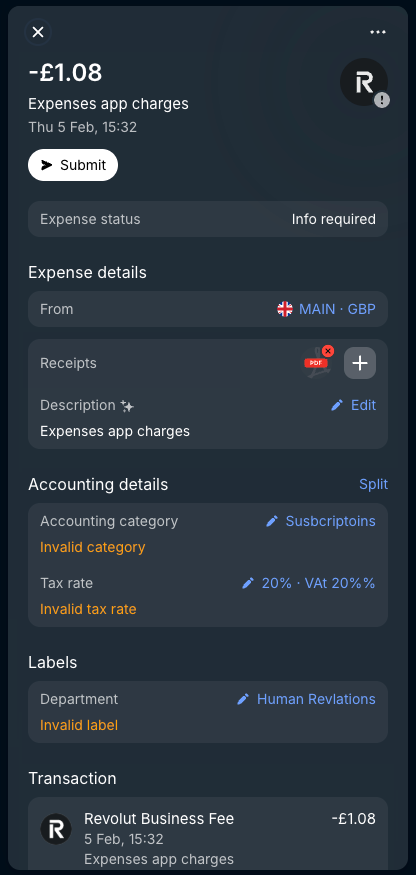
On successful deletion, you get a 204 response with no additional content.
For more details and sample requests and responses:
See the API reference: Delete an accounting category
Pagination
- Page size: The API returns a maximum of 500 results per request (default: 100).
You can increase or decrease the page size, i.e. the maximum number of results returned per page, by explicitly setting the
limitparameter. - Sorting: Results are sorted by the
created_atdate in reverse chronological order. - Next Page: If the results exceed the page size, the response includes
next_page_token. To fetch the next page of results, make a new request providing this value ofnext_page_tokenin thepage_tokenquery parameter.
Externally managed settings
If an accounting software integration is connected, accounting categories are typically managed within that external platform. In this state, the categories are read-only via the API, and manual modification attempts will return an error.
To find out if your accounting categories are managed externally, check the Revolut Business settings.
- Go to Settings → Accounting → Accounting categories.
- Look for a + New button above the categories.
-
If you see the button, this means that your categories can be modified via the API.
-
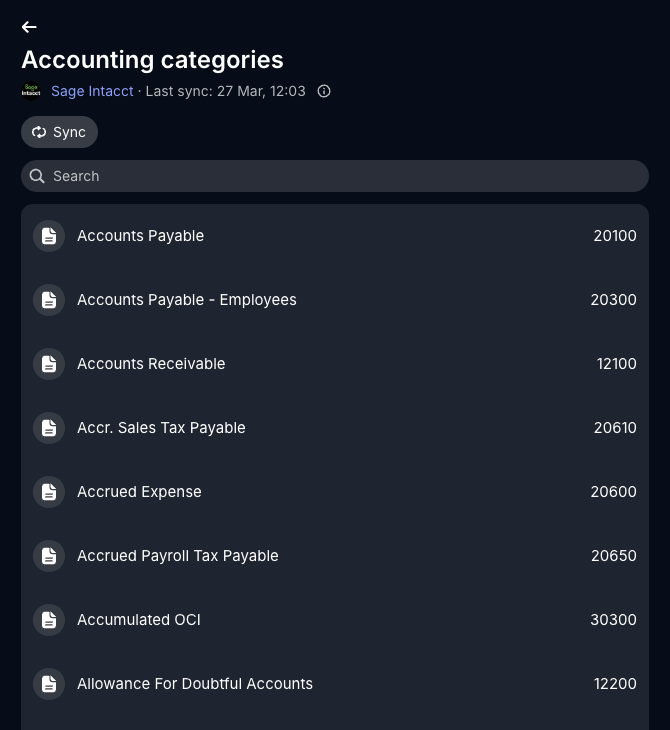
If you don't see the button, your accounting categories are managed externally by the connected integration and cannot be modified (created/updated/deleted) via the API. The name of the connected integration appears near the top, together with information when it was last synced.
Editable Read-only 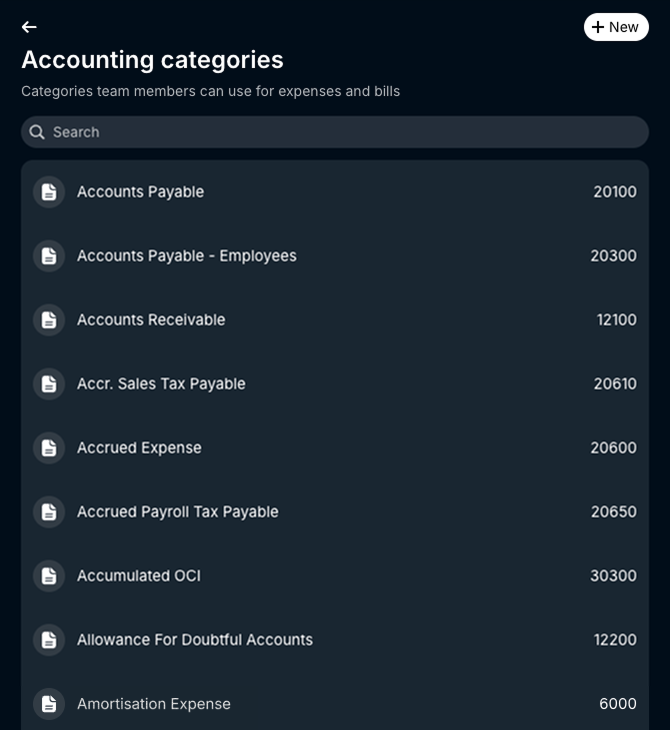
See also
- Accounting settings - overview
- Manage labels and label groups
- Manage tax rates
- Revolut Help Centre: