
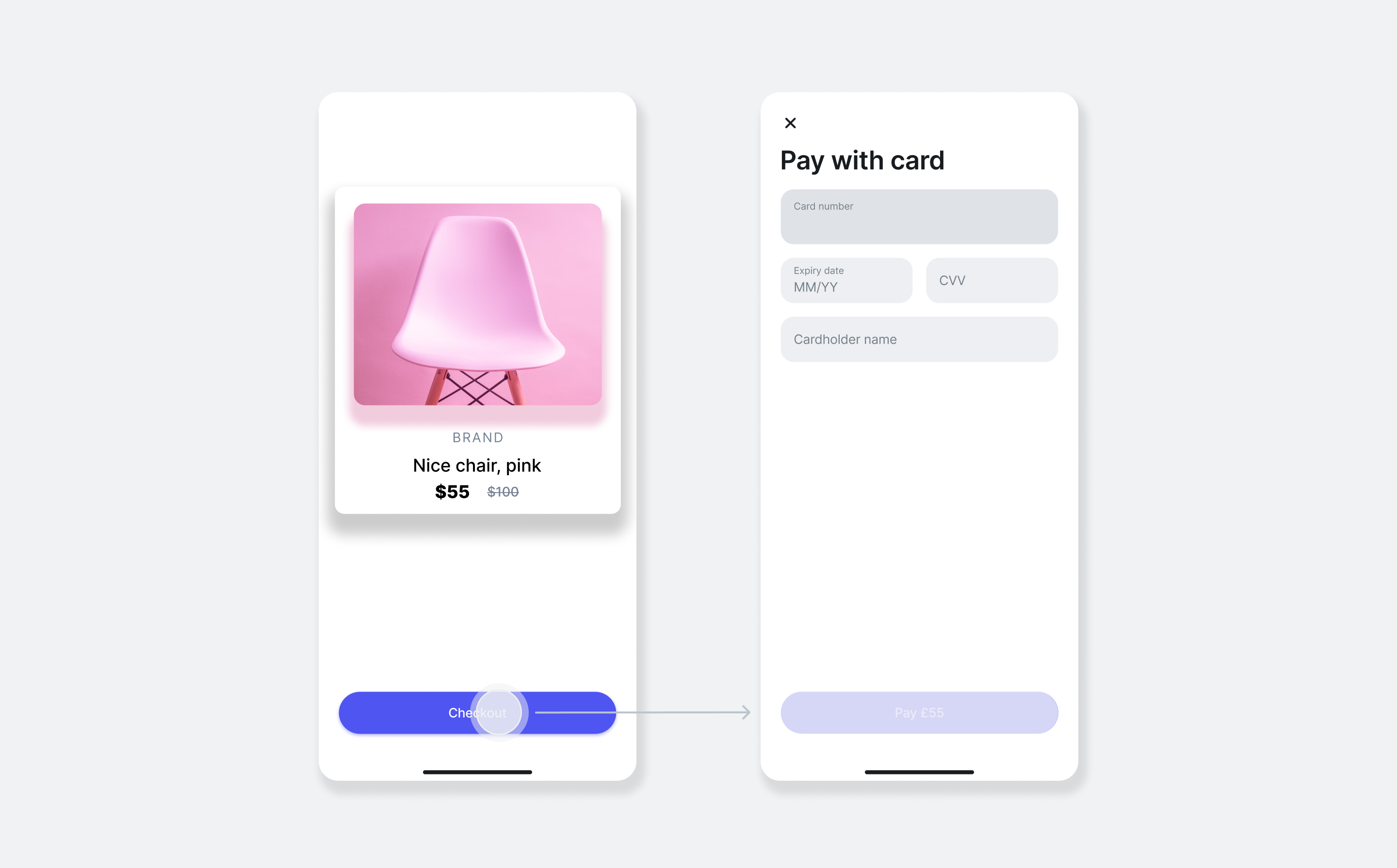
The Revolut Merchant Card Form SDK for React Native allows merchants to accept card payments within their cross-platform apps using a prebuilt card form. The form is presented as a modal overlay - no deep linking or app switching is required.
How it works
From an implementation perspective, the SDK works with the following components:
- Server-side: create an order and get a
token, using the Merchant API: Create an order endpoint. - Client-side: initialise the SDK with your Merchant Public API key.
- Client-side: call
RevolutMerchantCardFormKit.pay(orderToken)to present the payment form. The SDK collects card details, handles 3D Secure authentication, and returns the result. - Endpoint for webhooks: set up an endpoint to receive webhook events for reliable payment lifecycle tracking. For more information, see: Use webhooks to keep track of the payment lifecycle.
The order and payment flow:
- The customer goes to the checkout screen in your app and decides to pay by card.
- Your server creates an order and returns the
tokento your app. - Your app calls
RevolutMerchantCardFormKit.pay(token), which presents the card input form. - The SDK collects the customer's card details, handles 3D Secure authentication, and resolves the returned promise with the payment result.
- Your server receives webhook notifications for each subscribed event.
For more information about the order and payment lifecycle, see: Order and payment lifecycle.
Implementation overview
- Set up an endpoint for creating orders
- Install the SDK
- Initialise the SDK
- Start the payment process
- Handle payment result
- Set up webhooks
Before you begin
Ensure you have:
- Active Revolut Business account with Merchant capabilities
- API credentials for the Merchant API
- A React Native project set up and ready for development
Implement the Revolut Merchant Card Form SDK
1. Set up an endpoint for creating orders
Before the card form can be displayed, your app needs a unique, single-use token that represents the customer's order. This token can only be created on your server by making a secure call to the Revolut Merchant API.
This server-side endpoint is a mandatory security requirement. Your secret API key must never be exposed in your React Native application.
Your endpoint is responsible for:
- Receiving the checkout details (e.g.,
amount,currency) from your client-side request. - Securely calling the Merchant API: Create an order endpoint with the checkout details.
- Receiving the order object, including the public
token, in the API response. - Returning the
tokenfrom the response to your app.
Below is an example of the JSON response from the Merchant API. The crucial field to extract and return to your app is the token.
{
  "id": "6516e61c-d279-a454-a837-bc52ce55ed49",
  "token": "0adc0e3c-ab44-4f33-bcc0-534ded7354ce",
  "type": "payment",
  "state": "pending",
  "created_at": "2023-09-29T14:58:36.079398Z",
  "updated_at": "2023-09-29T14:58:36.079398Z",
  "amount": 1000,
  "currency": "GBP",
  "outstanding_amount": 1000,
  "capture_mode": "automatic",
  "checkout_url": "https://checkout.revolut.com/payment-link/0adc0e3c-ab44-4f33-bcc0-534ded7354ce",
  "enforce_challenge": "automatic"
}2. Install the SDK
Add the following packages to your project with your preferred package manager:
npm install @revolut/revolut-merchant-card-form @revolut/revolut-payments-coreAfter installing the packages, complete the platform-specific native setup:
The package includes a CocoaPods podspec that declares the native iOS SDK dependency. Install it by running:
cd ios && bundle exec pod install && cd ..The minimum iOS version is determined by your React Native version. The SDK's podspec defers to your project's own minimum - no additional iOS version requirement is imposed.
3. Initialise the SDK
Import RevolutPaymentsSDK and call configure once at the module level of your root component file, before the component declaration. This ensures initialisation runs exactly once when the app starts, independent of React's rendering lifecycle:
import { RevolutPaymentsSDK } from '@revolut/revolut-merchant-card-form'

RevolutPaymentsSDK.configure('<yourPublicApiKey>', 'production')
  .catch(error => console.error('SDK configuration error:', error))

function App() {
  // ...
}| Parameter | Description | Type | Required |
|---|---|---|---|
merchantPublicKey | Your Merchant Public API key used for authorisation, available in the Revolut Business dashboard. For the Sandbox environment use the Sandbox API Public key. | string | Yes |
environment | The API environment to connect to. Use 'sandbox' during development and testing. | 'sandbox' | 'production' | Yes |
4. Start the payment process
At this point in the payment flow, your checkout screen displays the order summary - items, total amount, and currency - and a pay button. The customer reviews their order and taps the button to proceed with payment.
When the customer taps the pay button, your handler calls the server-side endpoint from step 1 to create an order and receive the token, then passes it to RevolutMerchantCardFormKit.pay().
The SDK presents the card input form as a modal and handles card entry and 3D Secure authentication. The call returns a Promise that resolves to a RevolutMerchantCardFormCompletionEvent - the TypeScript type with two key properties: status (the outcome: 'success', 'failure', or 'userAbandoned') and error (present only when status is 'failure'). You will handle these in step 5.
import {
  RevolutMerchantCardFormKit,
  RevolutMerchantCardFormCompletionEvent,
} from '@revolut/revolut-merchant-card-form'

const handlePayPress = async () => {
  // Call the server-side endpoint from step 1 to create an order and get the `token`.
  // For more information, see: Merchant API: Create an order
  const order = await yourBackendCall()

  // Present the card form - the SDK handles card entry and 3D Secure
  const result: RevolutMerchantCardFormCompletionEvent =
    await RevolutMerchantCardFormKit.pay(order.token)

  // Handle the result - see step 5
}yourBackendCall() is a placeholder. In production, wrap your backend call in a try/catch block to handle network failures and server errors gracefully. Implement appropriate logging and retry logic before surfacing an error state to the customer.
5. Handle payment result
With the return type established, add the result handling logic to handlePayPress. Handle each case to lead the customer forward in the UI:
status | What happened | Suggested response |
|---|---|---|
success | The payment was successfully authorised. | Navigate to an order confirmation screen. |
failure | The payment failed. Inspect result.error for details. | Show an error message and offer the option to retry or use a different payment method. |
userAbandoned | The customer closed the form without completing payment. | Return to the checkout screen - this is not an error. |
import {
  RevolutMerchantCardFormKit,
  RevolutMerchantCardFormCompletionEvent,
} from '@revolut/revolut-merchant-card-form'

const handlePayPress = async () => {
  const order = await yourBackendCall()
  const result: RevolutMerchantCardFormCompletionEvent =
    await RevolutMerchantCardFormKit.pay(order.token)

  switch (result.status) {
    case 'success':
      // Navigate to a confirmation screen
      break
    case 'failure':
      // Show an error message; inspect result.error for details
      console.error('Payment failed:', result.error)
      break
    case 'userAbandoned':
      // Handle gracefully - the customer closed the form
      break
  }
}When result.status is 'failure', result.error is an object with code and message fields. Some codes also include a reason field. Log the full object for debugging purposes and to set up your error handling logic.
6. Set up webhooks
While the promise result from RevolutMerchantCardFormKit.pay() gives you the immediate outcome for your UI, it should not be used to trigger fulfilment logic. Network conditions, the customer force-quitting the app, or other interruptions can all prevent the result from being processed reliably.
Webhooks provide a guaranteed, server-to-server notification that gives you the authoritative final state of every payment.
For instructions on registering webhook URLs and handling the events your server will receive, see: Use webhooks to keep track of the payment lifecycle.
Congratulations! You have successfully integrated the Revolut Merchant Card Form SDK into your React Native application.
Example
A fully functional demo app is available in the revolut-mobile/revolut-payments-react-native public repository on GitHub. The packages/revolut-merchant-card-form-demo directory demonstrates a complete Revolut Merchant Card Form integration.
To run the demo:
-
Clone the repository:
git clone https://github.com/revolut-mobile/revolut-payments-react-native.git -
Navigate to the demo package:
cd revolut-payments-react-native/packages/revolut-merchant-card-form-demo -
Install dependencies:
npm install -
For iOS, install CocoaPods dependencies:
bundle install cd ios && bundle exec pod install && cd .. -
Run the app:
# iOS
    npm run ios

    # Android
    npm run android
Implementation checklist
Use this checklist to verify your integration is production-ready. Work through it twice: once in the Sandbox environment and again in Production. Both passes are required - Sandbox catches logic errors, but Production may surface environment-specific behaviour (real card networks, real 3DS flows) that Sandbox cannot replicate.
To test in Sandbox, set your API base URL to https://sandbox-merchant.revolut.com/ and initialise the SDK with 'sandbox':
await RevolutPaymentsSDK.configure('<yourPublicApiKey>', 'sandbox')For test card numbers that simulate success, failure, and 3DS scenarios, see: Test cards.
Project setup
-
@revolut/revolut-merchant-card-formand@revolut/revolut-payments-coreare installed. - Android
MainActivity.ktimplementsCardPaymentLauncherHolderwith a declaredlauncher. -
RevolutPaymentsSDK.configureis called before any payment is initiated.
Payment flow
- The card form is displayed correctly using the order
token. The order must be created in the same environment where the SDK is initialised. - Test cards produce a successful payment.
- Error scenario test cards trigger appropriate error handling.
- The user closing the payment form is handled gracefully.
Backend verification
- Webhook URL is registered and your server receives events (e.g.,
ORDER_COMPLETED,ORDER_PAYMENT_FAILED,ORDER_CANCELLED). - Order fulfilment logic is only triggered after receiving a successful webhook, not from the client-side promise result.